Animating
There is no timeline. You decide what the slide looks like at each click, and Tracé animates between those moments.
Two ways to animate
- Clicks: objects appear, change and leave on click 1, 2, 3… within one slide.
- Slides: duplicate a slide and change the copy. Everything that moved, grew, turned or changed animates when you go to the next slide.
You can mix both freely. Clicks are best for building up one picture; duplicated slides are best for a sequence of states, like a story board.
Building a slide click by click
Select an object and press Animate on the right edge of the settings. Appears says when it comes in: With the slide, or On click 1, On click 2… The last option, marked (new), adds a click to the slide.
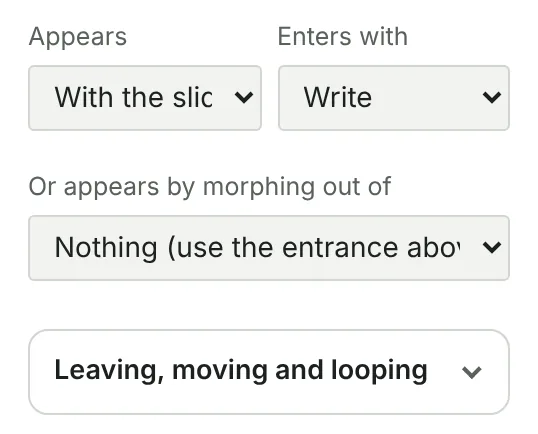
Leaves, When it moves, Keeps moving and Emphasis are folded under Leaving, moving and looping: click it to open it. To practise, open Tour → Change things on a click or Animate between slides.
Objects that appear on the same click come in together. To bring them in one after another, tick Objects that appear together come in one after another in the slide settings.
Entrances, exits and motion
| Setting | Choices |
|---|---|
| Enters with | Write (text and equations are written stroke by stroke), Draw (lines, arrows and curves draw from start to end), Fade in, Grow, Slide in from the left or right, Rise from below, Drop from above, Zoom in, Spin in, Draw the outline then fill |
| Or appears by morphing out of | Pick another object: it turns into this one, for example a circle into a star, or one equation into the next |
| Leaves / Leaves with | Stays, or leaves on a click: Fade out, Shrink away, Slide out, Drop out, Un-draw |
| When it moves | Straight line, Curve to the left, Curve to the right |
| Keeps moving | No, Spin, Pulse, Float up and down, or a motion that suits the object (a wave keeps travelling, a phasor keeps turning, a 3D view keeps turning). Set how long one cycle takes |
| Emphasis when this slide starts | Pulse and highlight, Flash colour, Wiggle |
Changing an object on a click
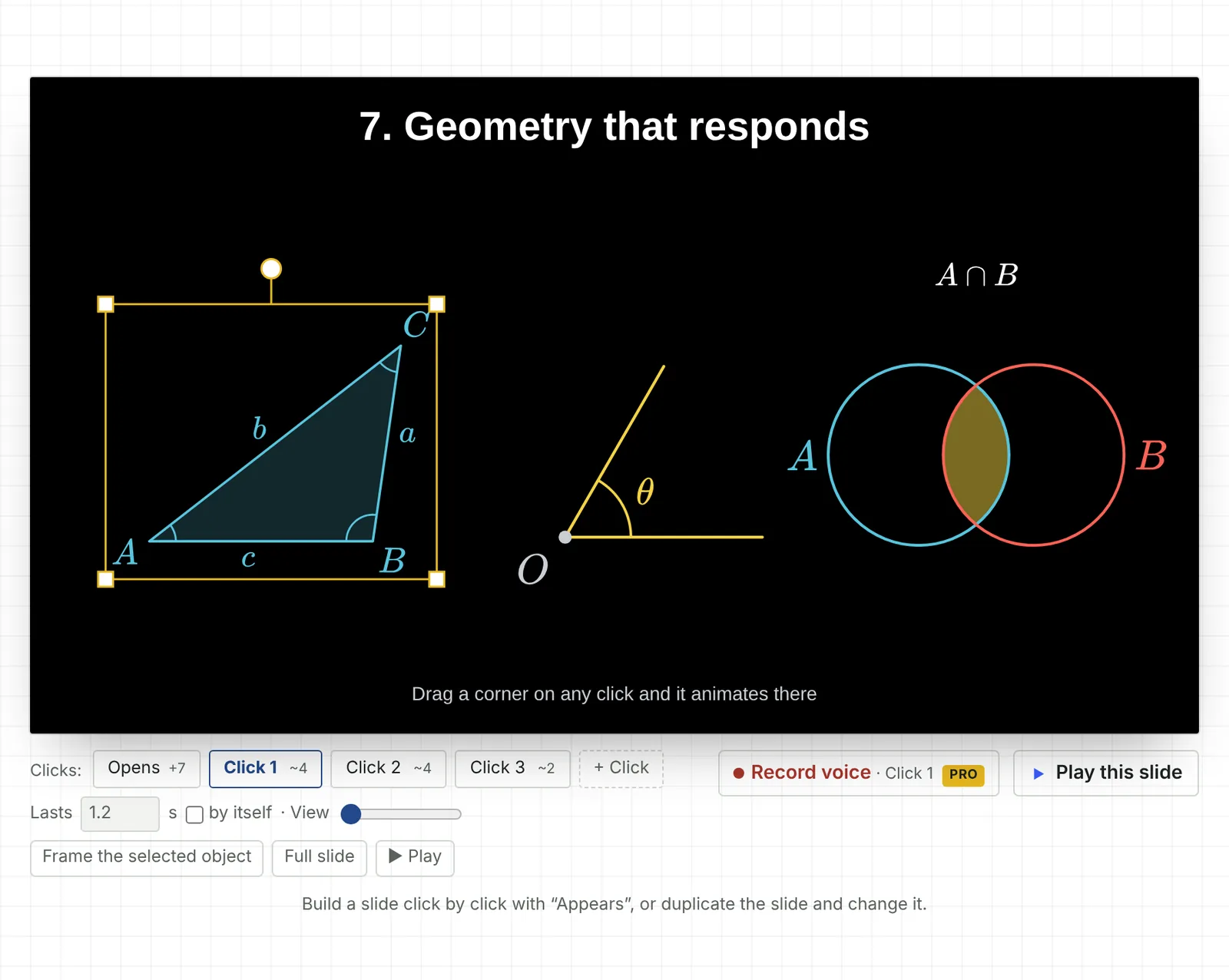
This is the heart of Tracé. Click a step in the clicks bar under the slide, for example Click 1. The slide now shows that moment, and whatever you change animates on that click: drag an object, resize or turn it, recolour it, or change any value in its settings.
- Values animate too: the number of Riemann rectangles, a slider value, Curve drawn so far, the number of series terms, a wave’s phase, a matrix, a 3D view. Set a different value on each click and it changes smoothly.
- Follow a path: while a click is selected, Travels can send the object along a curve, circle or other shape on the slide instead of in a straight line. A dashed line shows the route. Tick Turn to face where it goes so a rocket or a car points along the path (set Its front points if it faces the wrong way), and Leave a trail to draw the route behind it.
- Undo this click’s changes puts the object back to how it was before that click.
- Click the selected step again to go back to editing the slide as a whole.
The clicks bar
Each step shows what happens on it: +2 means two objects appear, −1 one leaves, ~1 one changes, and a magnifier means the view zooms. When a step is selected you also get:
- Lasts: how many seconds this click’s animation takes.
- by itself: the step plays on its own after the previous one, without a click. Use it for a sequence that runs by itself.
- View: zoom into part of the slide on this click. Frame the selected object zooms to it; Full slide zooms back out.
- ▶ Play: plays just this step.
+ Click adds a step at the end. If an object is selected, it will appear on the new click.
Recording your voice PRO
Each step of a slide can have its own recording: explain the graph as it draws itself, then the next idea on the next click.
- Choose the step. Record voice is always under the slide, next to Play this slide. It records for the start of the slide; to record for a click instead, select that click in the clicks bar first (the button then says which click).
- Record. Press Record voice. The first time, the browser asks to use the microphone: allow it. Speak, then press Stop. Recordings can be up to 3 minutes.
- Check it. ▶ Voice plays it back; Re-record replaces it; × deletes it. Steps with a recording show a 🎙 in the clicks bar.
When you present, or someone watches your share link, each recording plays as its step starts. Steps set to play by itself wait until the voice before them has finished, so a slide can run as a narrated video. Play this slide and ▶ Play play the voice too.
Recordings are saved inside the project, like images, so they count towards its size. A minute of voice takes about 250 KB.
Animating between slides
- Finish a slide, then press Duplicate under the slide list.
- On the copy, change what should change: move the point, edit the equation, turn the 3D view, add a new object, delete one.
- Press Play this slide, or present: going to the copy animates every change. Objects that only exist on the new slide enter; objects that are gone leave.
Slides that animate in from the one before are marked Animates in in the list. Point at it to see what happens, for example “2 moving, 1 changing shape, 1 new”.
Speed and feel
Click an empty part of the slide to see the slide settings:
- Transition length: how long the move into this slide takes.
- Motion feel: Smooth, Steady (constant speed), Snappy (fast start), Bouncy (slight overshoot) and more.
- Show grid while editing, a grid that helps you line things up and never shows when presenting.
Designing the background
Click an empty part of the slide, open Background in the settings and press Design the background…. You can:
- pick a ready-made background: Blueprint, Chalkboard, Graph paper, Notebook, Night sky and more;
- choose One colour, a Gradient between two colours (and its direction), or a Soft glow in the middle;
- add a pattern (Grid, Graph paper, Dots, Ruled lines) and set how strong it is;
- darken the edges a little, like a spotlight;
- use a picture from your computer: Fill the slide or Show all of it, and Darken it so writing stays readable on top;
- change the slide size: Wide 16:9 for screens and projectors, Standard 4:3, Square 1:1, or Vertical 9:16 for YouTube Shorts, Reels, TikTok and phones. Tick Shrink what is on the slides so it fits the new size to keep everything inside the frame. The slide size is also in the Slide section of the settings.
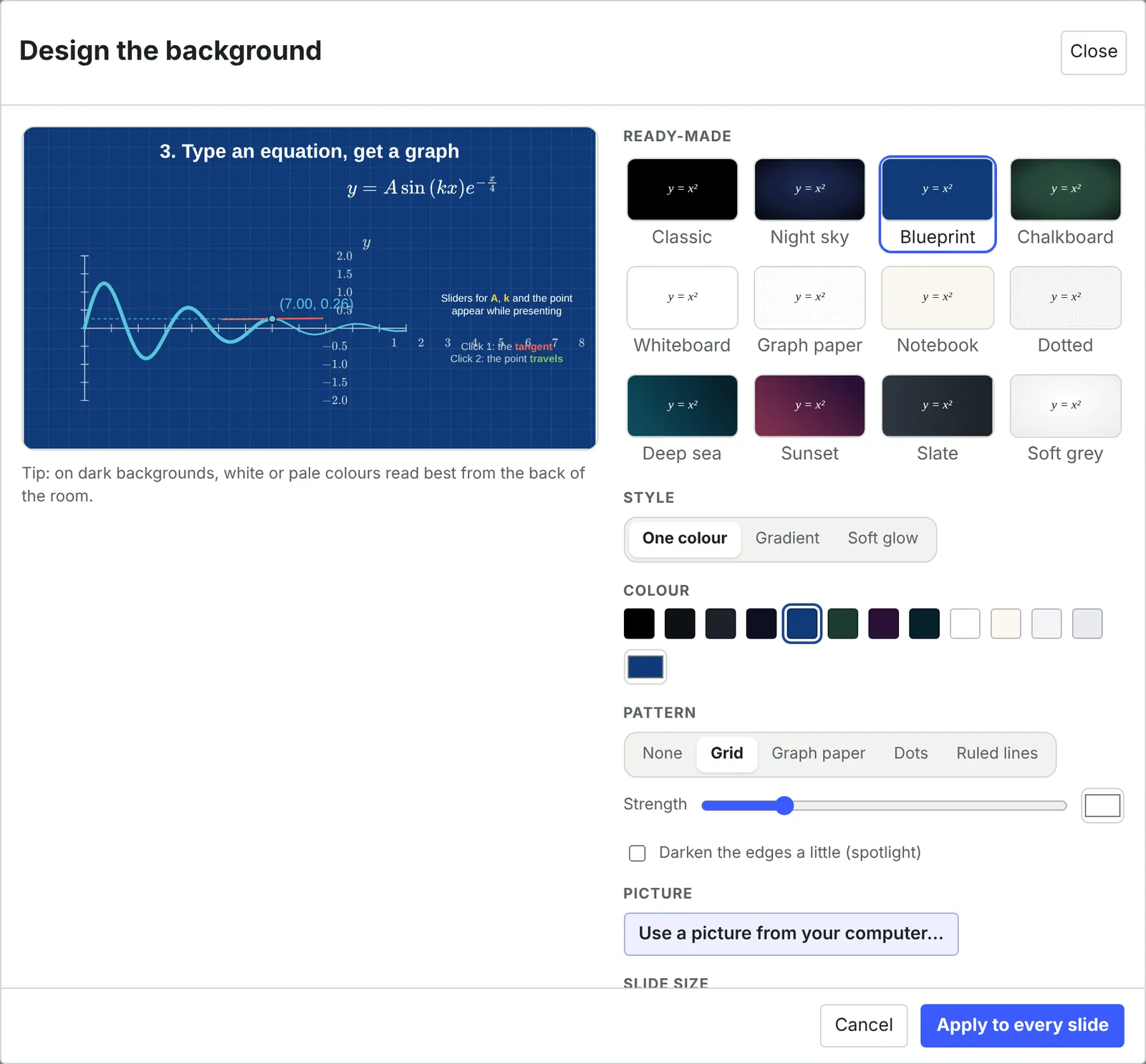
The preview shows your current slide. If white writing would be hard to read on a light background (or black writing on a dark one), Tracé says so and offers to switch those colours for you. Apply to every slide changes the whole deck; Undo brings the old background back. Backgrounds show when presenting, on share links and in videos. A vertical deck makes a vertical video (1080 × 1920), ready to upload as a Short.
Tips
- Use Play this slide often. It plays exactly what the audience will see when this slide starts.
- Keep one idea per click. If a click changes five things, the audience will not know where to look.
- To draw a graph after its axes are on screen, show the graph with the slide, set Curve drawn so far to 0, then set it to 1 on click 1.
- Animations that keep moving (Keeps moving) keep running while the next steps play, so a spinning object never stops abruptly.