
Presenting
Press Present to play the deck full screen from the slide you are on. Every click plays the next step; live sliders let you change the maths on stage.
Moving through the deck
| To | Do this |
|---|---|
| Go to the next step | Click anywhere, or press →, Space, Page Down or Enter |
| Go back one step | ← or Page Up |
| Hide or show the live sliders | C, or the button at the top left |
| Leave | Esc, or Exit (Esc) at the top right |
A click during an animation lines up the next step, so you never lose a click. Most presentation remotes send Page Down and Page Up, so they work too.
Live sliders and 3D
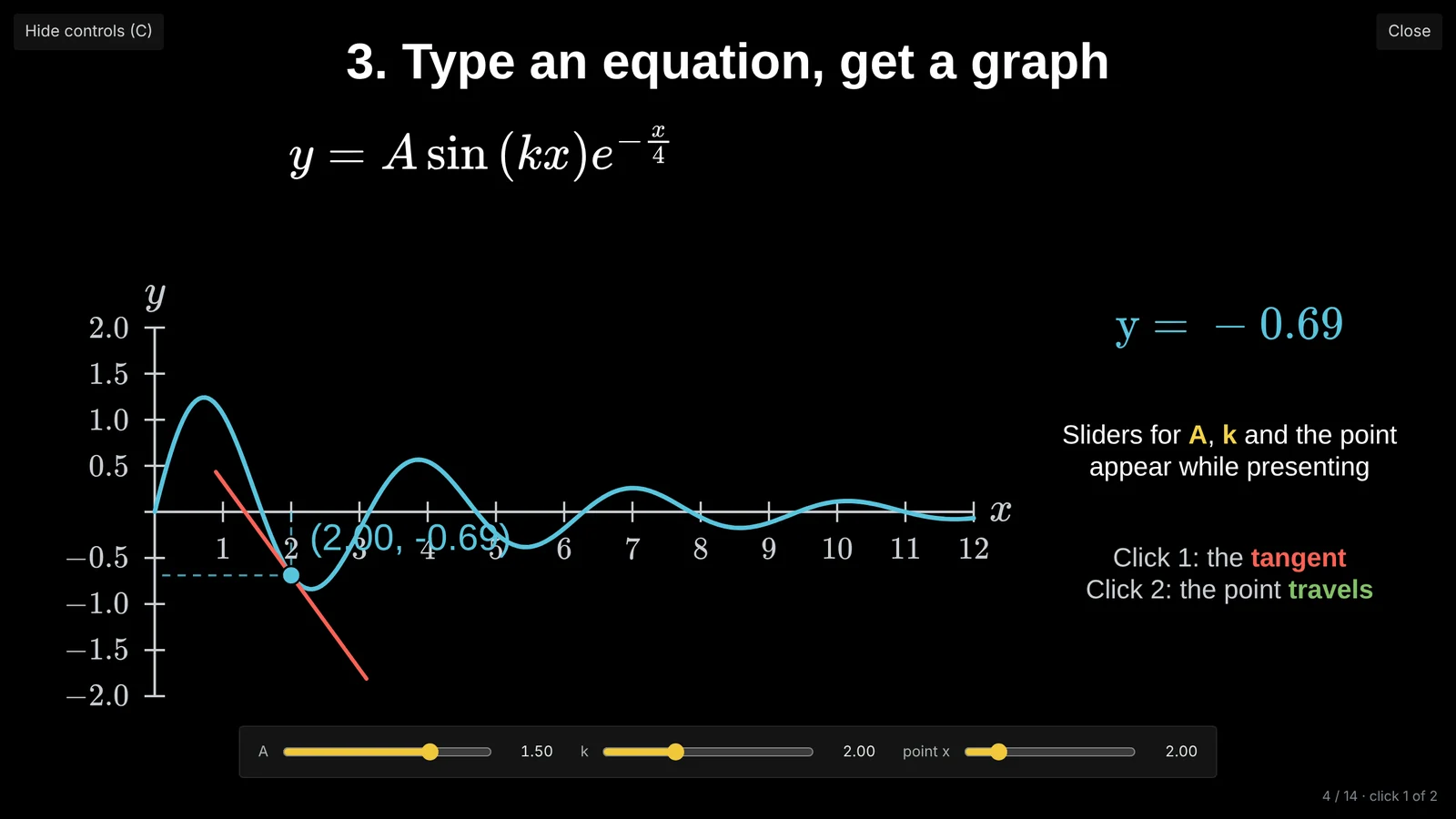
A slider appears when you ticked Live slider for a letter in an equation, Slider for the point while presenting on a graph, or Turn and tilt sliders while presenting on 3D axes. Moving a slider updates everything linked to it: the equation’s graph, a counter, a 3D surface. They keep their value while you click through the same slide, and go back to the values you set in the editor on the next slide.
The AI builder adds sliders too. When a slide is about how a result depends on a value (a coefficient, a launch angle, a length), it gives the graph a slider, and on a pendulum a slider for its length. To be sure, say it in your request: “with a slider for the launch angle”.
- Drag the round handle, or click anywhere on the line to jump there.
- Fine-tune: while dragging, move the pointer up or down, away from the slider: the further away, the slower it moves (“slower” shows above it).
- − and + move one step; keep them pressed to keep going. With the slider selected, ← → move one step and Shift+← → ten steps.
- Exact value: click the number on the right, type a value and press Enter.
- Back to the start: double-click the slider’s name.
The same sliders appear under the slide in the editor, so you can try them before presenting. Using a slider never moves to the next step; click the slide for that.
3D objects can be turned by dragging them while presenting.
Recorded voice plays as each step starts (see Recording your voice). On the free plan, a small “Made with Tracé” badge shows in the bottom corner while presenting; Pro removes it.
Tablets and phones
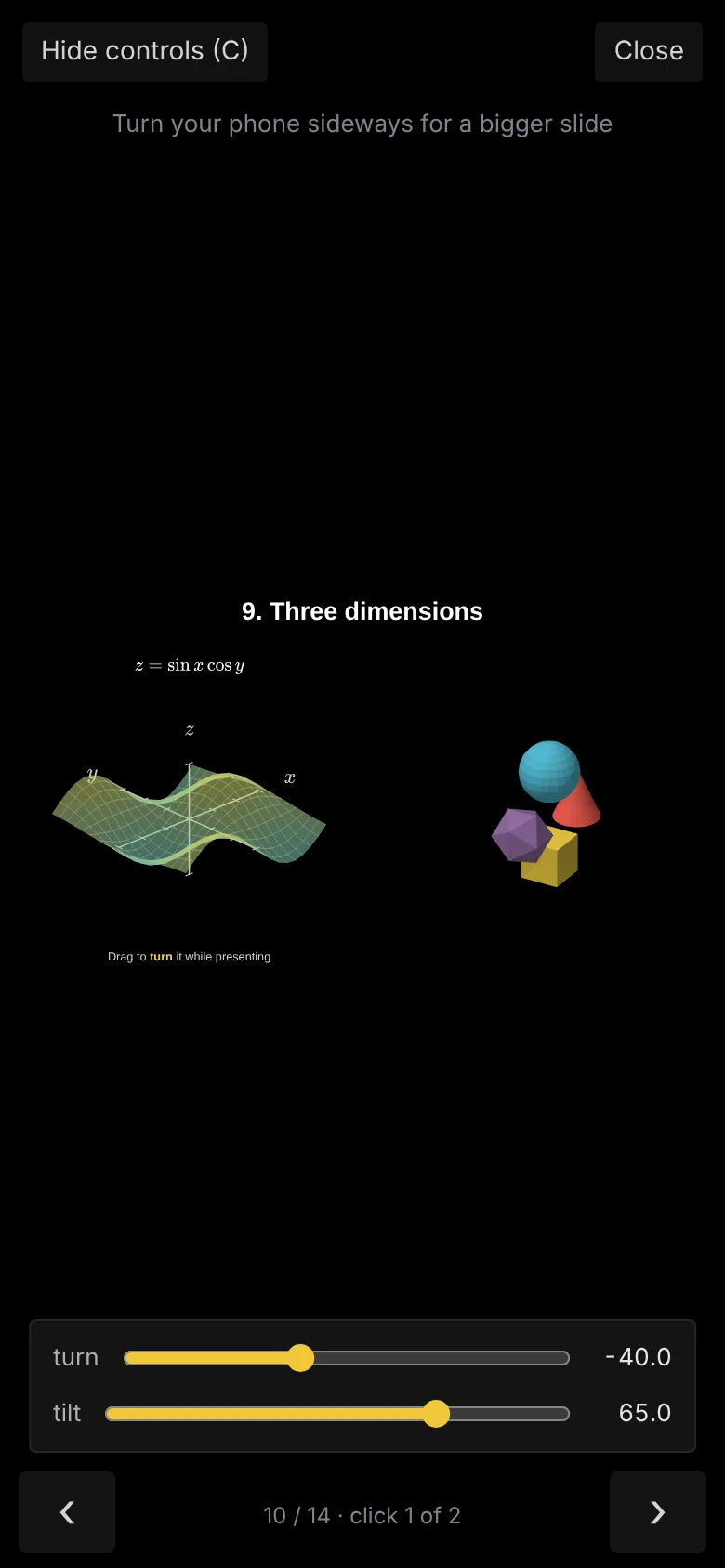
- Swipe left for the next step and right to go back, or tap the ‹ and › buttons.
- Tap the left quarter of the screen to go back; tap anywhere else to go forward.
- Held sideways, sliders stay hidden so they don’t cover the slide; tap Show controls to see them.
On the day
- Open the editor and the deck before the talk while you have internet: the maths fonts load once, then presenting works offline.
- Play the deck once on the projector. Colours look different on projectors; light text on a dark background is safest.
- If something goes wrong, sharing a link (next page) lets you present from any other computer.