Animation helps when it shows a change the class would otherwise have to imagine: a tangent sliding along a curve, a sum gaining terms, a shape being transformed. You do not need to code to make it. The trick is to plan the slide as a sequence of clicks, each revealing one idea.
What is worth animating
Not everything should move. Animation earns its place when the motion is the mathematics:
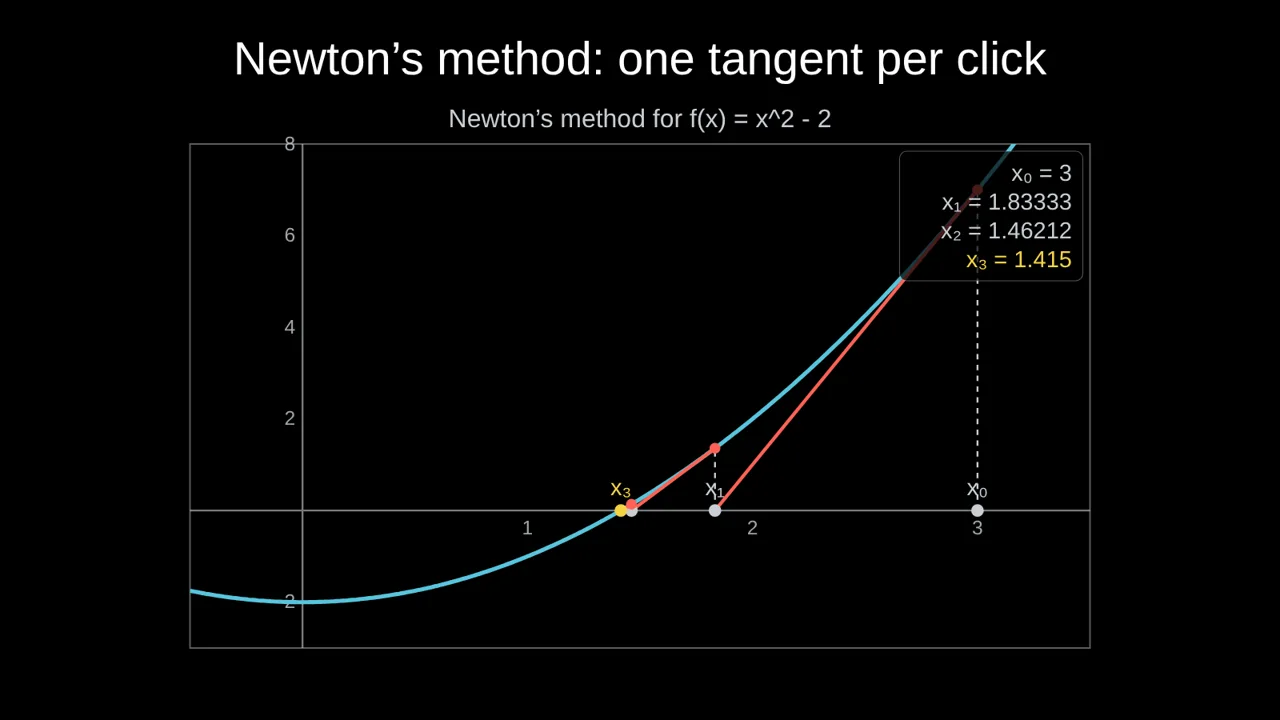
- Limits and approach: a secant line turning into a tangent as Δx shrinks, Riemann rectangles getting thinner, Newton's method closing in on a root.
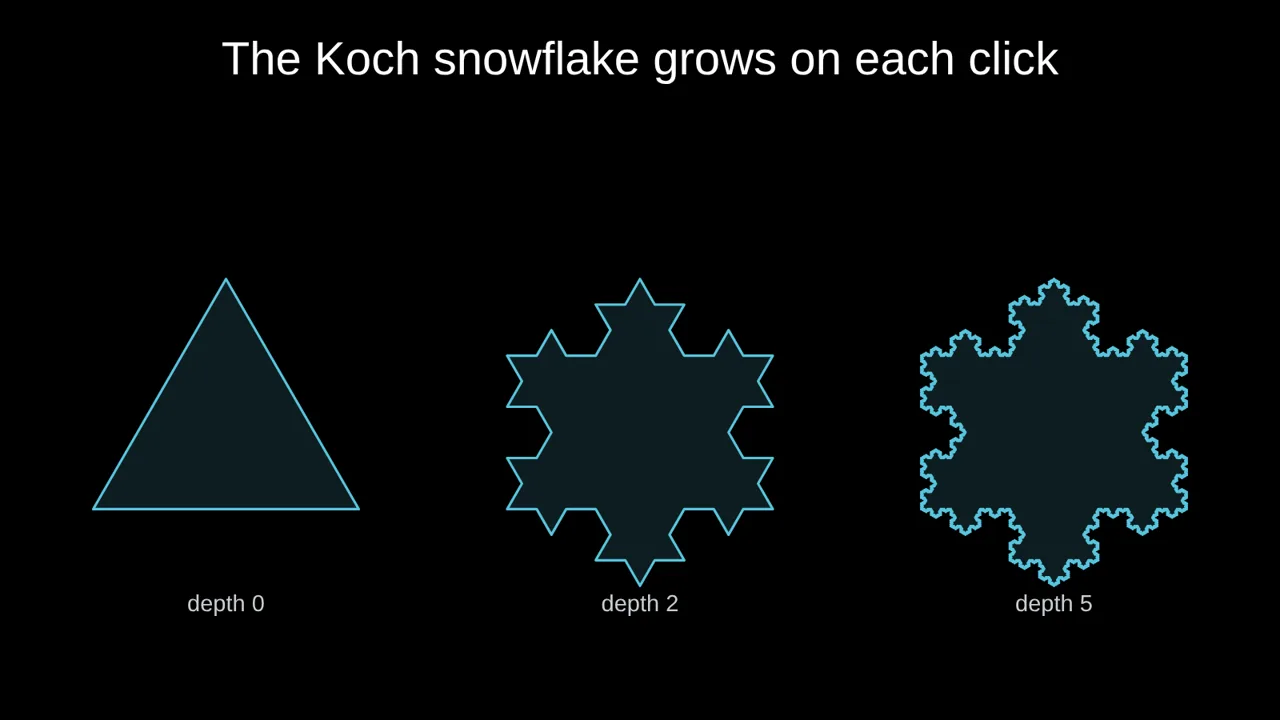
- Dependence on a parameter: how a parabola changes with a, how a sine wave shifts with its phase, how a fractal gets more detailed with depth.
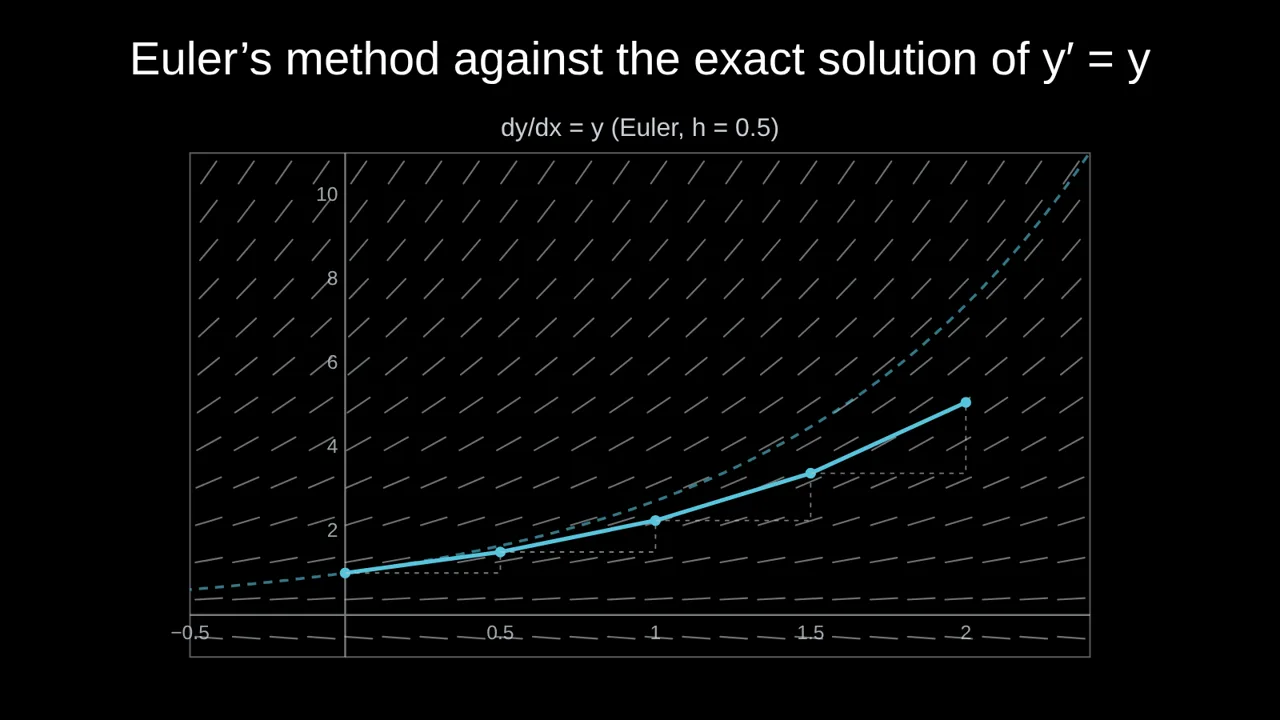
- Step-by-step processes: a worked solution line by line, the sieve of Eratosthenes crossing out multiples, Euler's method taking one step at a time.
- Transformations: a matrix acting on the plane, a complex function mapping a grid, a shape morphing into another.
If the idea is static (a definition, a table of values), a clear still slide is better. Movement for its own sake makes a lesson harder to follow, not easier.
Plan the slide as clicks
The most useful habit is to write the slide as a list of clicks before you build it. For "maximum and minimum of a cubic", for example:
- Click 0: the graph of f(x) = x³ − 3x draws itself.
- Click 1: a point slides along the curve with its tangent.
- Click 2: the tangent goes flat at x = −1: the maximum appears, labelled.
- Click 3: the same at x = 1: the minimum.
- Click 4: the inflection point at the origin, where the curve changes from concave to convex.
Each click answers one question the class can predict before you press. That rhythm, predict then reveal, is what keeps students thinking instead of watching.
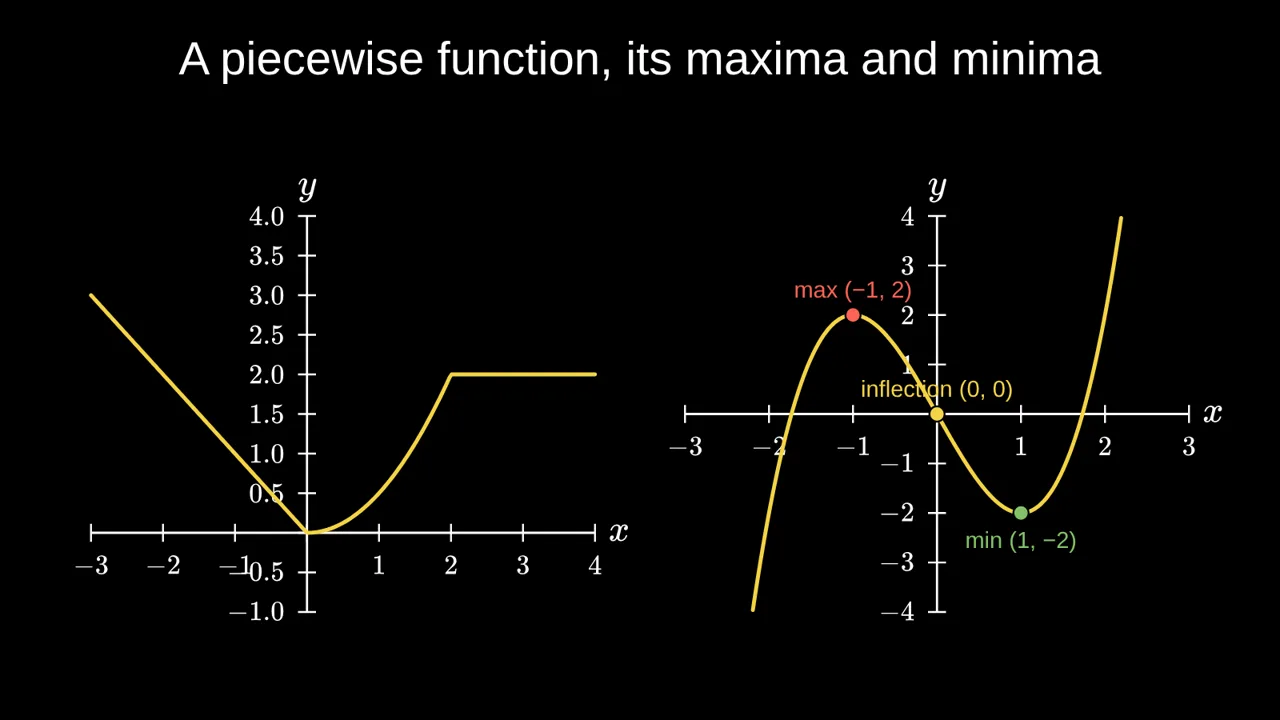
{x < 0: -x, x < 2: x^2/2, 2}, and a cubic with its stationary and inflection points marked automatically.Building it in Tracé
Tracé is built around this click-by-click idea. Every object has an Appears setting (On click 1, On click 2…), and any number in its settings can change from one click to the next: Tracé animates the change.
- Add an equation and type it like on a calculator:
y = x^3 - 3x. Piecewise functions work too:{x < 0: -x, x^2}. - Press Plot this equation as a graph. Tick Mark the maxima and minima and Mark the inflection points.
- Tick Mark a point on the curve and Tangent line at the point, then use + Click and move the point on each click.
- Press Present: each click plays the next change.
The equation and the graph stay linked: change a coefficient and the graph updates on every slide. Tick Live slider next to a letter to get a slider you can move in front of the class.
Present, share or export
The same slides play full screen in class, on a share link that works on phones, as a PDF handout, or as an MP4 video with your recorded voice. That last one is useful for flipped classrooms: record the explanation once and students watch it before the lesson.
Questions
Do I need to know LaTeX?
No. Equations can be typed like on a calculator, and a symbols palette inserts fractions, integrals, sums and Greek letters for you. LaTeX is there if you already use it.
How is this different from PowerPoint animations?
PowerPoint moves pictures. Tracé animates the mathematics itself: a curve redraws when its equation changes, a point stays on the curve as it moves, a sum gains its terms. You describe the maths; the motion follows from it.
Can students use it?
Yes. The free plan is enough to make and share decks, which works well for student presentations and projects.
More: Animated math slides for teachers · How to create math slides, step by step